Monday, November 26, 2018

Perform WhatsApp Archive on iPhone 2019


Option 1Gihosoft Free iPhone Data Recovery:https://www.gihosoft.com/iphone-data-recovery-free.html
Gihosoft iPhone Data Recovery Free
Free iPhone Data Recovery Software for Windows/Mac

Option 2: Archive WhatsApp Chat on iPhone via iCloud Drive

iCloud drive also offers you the opportunity to archive WhatsApp messages iPhone. Here’s how to do it through iCloud Drive.

Step 1: Go to"Settings" and then choose the "iCloud" option.

Step 2: Find iCloud Drive and make sure that it is "ON".

Step 3: From the list of apps displayed within iCloud Drive, make sure that "WhatsApp" is turned "ON".


Option 3: Archive WhatsApp on iPhone via WhatsApp Settings

You can archive WhatsApp messages on iPhone through WhatsApp settings as well.

Step 1. Make sure that your device is connected to a strong and secured Wi-Fi network.

Step 2. Open WhatsApp and go to Settings > Chats > Chat Backup.

Step 3. Tap on Back Up Now option and wait for the process to complete.


Option 4: Archive WhatsApp Chat on iPhone via iTunes

In this part, let’s see how to use iTunes (one of Apple’s default features) to archive WhatsApp messages on iPhone.

Step 1. Make sure that you are using the latest iTunes version and open it.

Step 2. Connect the iOS device (on which the respective WhatsApp account is used) to the same computer.

Step 3. Trust the computer on the iPhone.

Step 4. Select the correct iOS device from the list displayed in iTunes.

Step 5. If prompted, you should enter the password to decrypt the backup.

Step 6. When the backup is finished, you will see a Summery screen.


Option 5: Archive WhatsApp Chat on iPhone via Email

If necessary, you can email WhatsApp chat to yourself and keep it as an archive. If you prefer such method, here’s how to do it.

Step 1. Open WhatsApp chat that needs to be emailed.

Step 2. Tap on the name of the group subject or name of the contact.

Step 3. Tap on the option “Export Chat”.

Step 4. Specify whether or not you need to Attach Media.

Step 5. Tap on the mail app, enter your email address and send it.


Thursday, July 12, 2018

NGXPlay is now compatible with iOS 11-11.3.1


HOW NGXPLAY WORKS

By default, you can only open compatible apps on your CarPlay screen. If any application is incompatible with CarPlay, it simply won’t work. This is where new Cydia tweak comes in.

NGXPlay Cydia tweak runs any application on CarPlay regardless of their compatibility. It is developed by Eason Wu, who is a newcomer on the jailbreak scene.

The whole point of CarPlay is to port your iPhone’s functionality to a screen in your car.

This lets you use your iPhone straight from the screen thus protecting you from the dangers of using your smartphone while driving.

Here’s a video demonstration of this tweak (thanks to Jay for the video).

Once installed, you can configure it in the Settings. The Settings section allows you to –


Enable – Enables or disables the tweak.


FPS – Sets the “frames per second” metric for your screen.


Applications – Enables the tweak for select iPhone apps.


Gihosoft Free iPhone Data Recovery is a professional iPhone Data Recovery software to get back all your lost text message, photo, video, call history, note, contact and more from iPhone/iPad/iPod Touch. It offers a full solution to recover your lost data in different tough situations. Besides recovering data directly from iPhone, iPad and iPod touch, it also allows you to recover data from iCloud and iTunes backup files.https://www.gihosoft.com/iphone-data-recovery-free.html


The only downside of this tweak is that it doesn’t run apps natively and simply “mirrors” them on your CarPlay screen. Furthermore, your apps will not feature a keyboard which can play spoilsport and ruin your immersion.
DOWNLOAD NGXPLAY
If you ever lost or accidentally deleted data from your iOS device, you can use the professional Gihosoft iPhone Data Recovery software to retrieve important data from iPhone, iPad or iPod Touch even without backup.
Jihosoft iPhone Backup Extractor Extract and recover all types of data from iPhone backup files, such as camera roll photos, videos, SMS, contacts, reminders, WhatsApp, and etc.

Most tweak developers focus on iPhone so it’s great to see CarPlay getting some much-needed jailbreak love. NGXPlay is also compatible with the Waze navigation app and that alone makes jailbreaking worth it. Highly recommended.

NGXPlay is available for download on https://repo.easonwu.org for free. It is compatible with iOS 10-11.3.1.

If you want to test this tweak, you must own a CarPlay-compatible car. Remember, do not install this tweak on iOS 11.4 beta 1-beta 3 or below until the developer confirms that those versions are supported.
CAN YOU SIDELOAD THIS TWEAK?

Unfortunately, this tweak is not sideload-able as an IPA file. It relies on Cydia Substrate or Substitute, which is available only on a device running a jailbreak.

Without Substrate or Substitute, it’s impossible to inject tweaks into the user interface and Springboard of iOS. Therefore, you must have a jailbreak-compatible firmware and device to run if you want to test this tweak out.

Saturday, June 16, 2018

Top 4 Free Ways to Sync Outlook Contacts with iPhone

Top 4 Free Ways to Sync Outlook Contacts with iPhone


1. Sync Outlook Contacts with iPhone Via Email


You can easily sync your Outlook contacts with iPhone via email. But while this method may be effective, the contacts will not be automatically updated when you make changes to them. That said, here’s how to sync outlook contacts with iPhone via email;


Step 1: In your Outlook account, create .vcf file of all your contacts. You can do this by selecting the contacts and then right-clicking and selecting “Send as a Business Card.” Send this file to your own email address.


Step 2: Open the email in Outlook and save the attached file on your computer like “c:/contacts.”


Step 3: Open command prompt and then enter “c:/contacts” or whatever name you gave the temporary file. Hit enter and then type “copy/a*.vcf c:/contacts and then hit enter again. This will create a copy of the merged .vcf files.


Step 4: Now send this file to your own email address again. And on your iPhone, open the email and open the .vcf file. Tap “Add All Contacts” to sync the contacts.
2. Import Outlook Contacts to iPhone Via iCloud Control Panel


You can also easily sync all the contacts in Outlook to iPhone using iCloud control panel. Here’s how to do that;


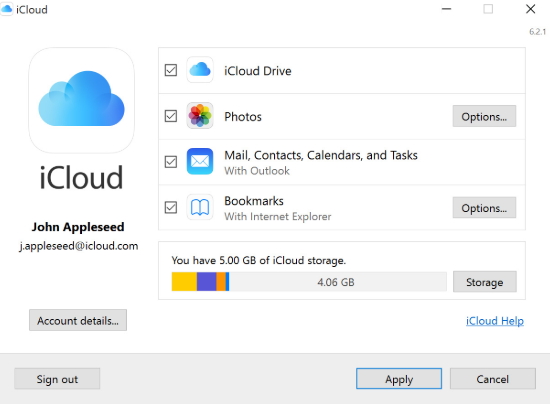
Step 1: Download and install iCloud control panel if you don’t already have it. Open it and then sign in with your iCloud ID and password.


Step 2: In the primary interface, ensure “Contacts, Calendars, & Tasks with Outlook” is selected.


Step 3: Click “Apply” and in a few minutes all the contacts in outlook will be available in iCloud.


Step 4: On your iPhone, go to Settings > iCloud. Sign in and then turn on Contacts & Calendars to complete the process.


3.Transfer Outlook Contacts to iPhone Via iTunes


Ensure that you have the latest version of iTunes installed on your computer and then follow these simple steps to do it;


Step 1: Connect the iPhone to the computer and then launch iTunes.


Step 2: Go to “Devices” on the left sidebar and locate the iPhone.


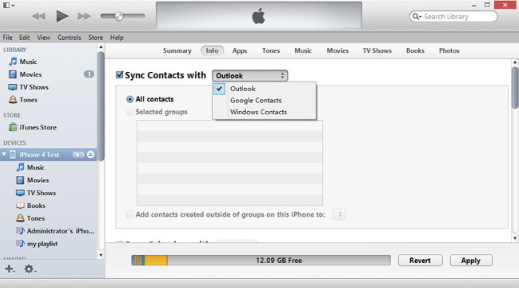
Step 3: Click on the “Info” tab on the upper portion of the screen.


Step 4: Ensure that “Sync Contacts with” is selected and in the drop-down menu select “Outlook.” Here, you can also choose to sync all contacts or sync only a few selected groups. Click “Apply” when you’re happy with your selection.


If Outlook notifies you that iTunes is attempting to access your data, you will need to click “Allow Access” for the process to continue. If you lost videos from iOS Camerall Roll which are nowhere to download again, you can use Gihosoft iPhone Data Recovery to get back deleted videos from iOS device including iPhone, iPad and iPod Touch.
Jihosoft iPhone Backup Extractor Extract and recover all types of data from iPhone backup files, such as camera roll photos, videos, SMS, contacts, reminders, WhatsApp, and etc.
Gihosoft Android data recovery Free is a super awesome software specialized in Android file recovery. With this program, you are able to recover deleted photos, music, videos, messages, contacts, call logs, WhatsApp messages, Viber chat history and more from Samsung, Huawei, LG, HTC, Motorola, Google, Oneplus, Sony, Lenovo, ZTE and other Android devices directly. Meanwhile, this Android data recovery software is available for both Windows and Mac platforms.


4. Sync Outlook with iPhone Using Exchange


If you have Microsoft Exchange on your computer, you can use it to sync iPhone contacts with Outlook. The process is relatively simple. Here’s how to do it;


Step 1: Set up your Outlook account in Exchange.


Step 2: On the iPhone, go to Settings > Mail, Contacts, Calendars > Add Account and choose “Microsoft Exchange.”


Step 3: Sign in using your username and password and then tap “Next”

The iPhone will need to contact the Exchange Server. You may need to enter the server's address.


Once you’ve entered the server, you can then choose the kind of data to be synced between the iPhone and Exchange. You can sync, emails, contacts, calendars and notes.

Top 3 Tips to Clean Your iPhone/iPad Charging Port

Top 3 Tips to Clean Your iPhone/iPad Charging Port
Using Compressed Air to Clean iPhone Charging Port


The key to using this method successfully is to ensure you spray just a little air at a time. Patience is key here. Make sure you don’t empty the whole air can all at once into the port. This can damage it. Also, note that Apple does not recommend the use of compressed air when cleaning the lightning port.


Therefore, you will need to be extra careful when performing this procedure. To clean charging port for iPhone 6/5s/6s successfully using compressed air, follow the steps indicated below:


Step #1: Obtain an air can. Make sure it comes with a straw (should be small) you can attach to its nozzle.


Step #2: Connect the small straw to the air can.


Step #3: Position the now connected straw on one end of your iPhone lightning port.


Step #4: Now focus on blowing few short blasts into the iPhone charging port. Make sure that each blast does not last more than 1 to 2 seconds.


Step #5: You can use a mini vac if you own one to try and draw out any loose debris particles.


Step #6: Repeat the above procedure several times and then test the charging port. If the iPhone starts charging, there is nothing else you need to do.
Using a Toothpick to Clean iPhone Lightning Port


The compressed air method we have already looked at can work if the debris inside your charging port is not tightly packed. However, by connecting the charging cable every now and then, you may have caused the dirt to become tightly packed such that compressed air won’t do the trick. In such a case, a toothpick can work.


Requirements:
Toothpick


This will be your cleaning tool. One toothpick can work but you should have a couple close to you just in case one toothpick breaks. Although you may have heard that a pin or a paper clip can work, we don’t recommend using them. Your charging port is made up of small electronic pins. Shoving hard and sharp things into the port might damage it. A toothpick is better since it is malleable and hence less likely to damage the port. The best toothpick to use is the round-tipped since it has zero sharpness.
Flashlight


To see whether you have managed to clean your charging port effectively, you will need a flashlight. Without a flashlight, you won’t see whether there is any debris remaining inside.


Keep in mind that the toothpick cleaning process will take a while. Therefore, you need to be patient. The following steps should help you clean the iPhone lightning port using a toothpick:


Step #1: Turn your iPhone off.


Step #2: Hold your iPhone such that its backside faces up.


Step #3: Place a toothpick inside its charging port.


Step #4: Scrape slowly against the charging port back wall.


Keep scraping until you notice some debris on your toothpick. The time it takes to notice this debris will depend on how tightly-packed the debris is inside the port. In rare cases, you may also need to scrape the charging port sides. When scraping the sides, you need to be extremely careful to ensure you don’t damage the anchors.


Step #5: Keep repeating the fourth step until you stop noticing debris on your toothpick.


Sometimes you may need to blow into the charging port to remove the loose lint. When you stop noticing dirt on your toothpick, try charging your iPhone again.Gihosoft iPhone Data Recovery is a professional iPhone Data Recovery software to get back all your lost text message, photo, video, call history, note, contact and more from iPhone/iPad/iPod Touch. It offers a full solution to recover your lost data in different tough situations. Besides recovering data directly from iPhone, iPad and iPod touch, it also allows you to recover data from iCloud and iTunes backup files.


Use a Professional


If you have tried the above methods but when you test your iPhone you find that it is still not charging, it might be a good idea to take it to a cleaning professional. A professional will have professional cleaning tools. Therefore, he or she will be able to remove all the debris from your lightning port quite easily without causing any damage. The places where you can find a cleaning professional include an iPhone repair shop, a battery store, and a watch repair shop.

iTunes Error 11503?


Other Solutions


Here are some other solutions you can try:
1 Select Individual App to Update


iTunes Error 11503 may occur when you try to update all apps with a single click via the option ‘Update All Apps’. So to prevent this error from occurring, you can simply choose individuals apps one-by-one in order to update. This may take relatively more time, but in this way you won’t encounter the error 11503.
2 Clear the Cache of Apps


Clearing the cache of apps on your iDevice sometimes helps solve iTunes error 11503. This is because cached files sometimes delay the app download or update process which leads to this error. So you simply need to clear the app cache to get rid of the problem for good.


Follow these instructions:


Step 1: Open Settings app on your iDevice.


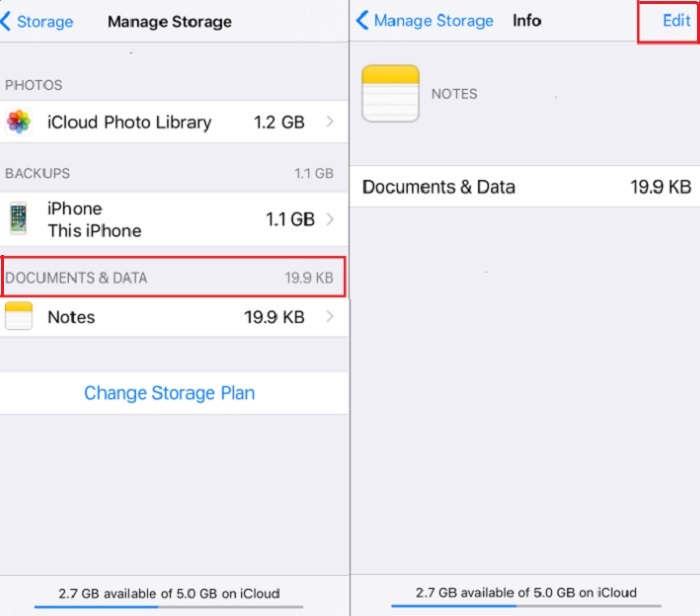
Step 2: Navigate to General > Storage & iCloud Usage > Manage Storage > Documents and Data.


Step 3: Now choose an app that you are trying to update via iTunes, select all the unwanted items shown on the left side of the screen and then tap Delete.


Step 4: Click Edit > Delete All in order to clear app’s data.Gihosoft iPhone Data Recovery is a professional iPhone Data Recovery software to get back all your lost text message, photo, video, call history, note, contact and more from iPhone/iPad/iPod Touch. It offers a full solution to recover your lost data in different tough situations. Besides recovering data directly from iPhone, iPad and iPod touch, it also allows you to recover data from iCloud and iTunes backup files.


3 Delete and Re-Download Apps within iTunes


You can also fix iTunes error 11503 by deleting and re-downloading the apps (that give this error) from your App Library.


Follow these instructions:
iTunes Error 11503?

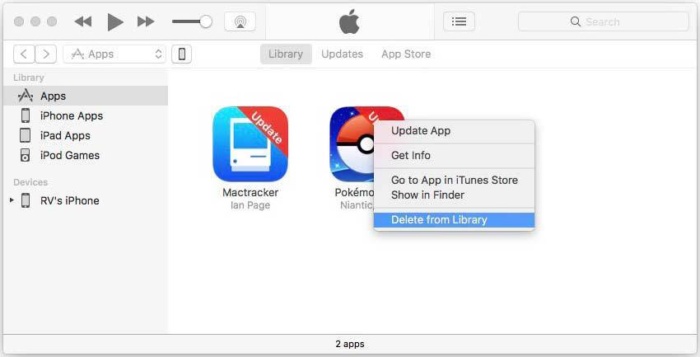
Step 1: Open iTunes and navigate to the App Library.


Step 2: Right-click on the app that gives error 11503 and then click ‘Delete from Library’ option. Click Move to Trash to confirm your action. Alternatively, you can also delete apps from your iTunes Library by navigating to Mobile Applications folder located in iTunes folder on your computer’s hard drive and delete the. ipa files.


Step 3: Once the app is deleted, re-download it via iTunes. The problem should be fixed now and you won’t encounter error 11503 when updating the re-downloaded app.


Sponsor ads:

Gihosoft Free iPhone Data Recovery:https://www.gihosoft.com/iphone-data-recovery-free.html

Gihosoft iPhone Data Recovery Free

Free iPhone Data Recovery Software for Windows/Mac

Recover up to 12+ types of files, including contacts, SMS, photos, WhatsApp, Viber, notes, etc.

Restore lost data from iOS devices directly or from iTunes and iCloud backup

Recover iPhone data lost due to iOS upgrade/jailbreak, accidental deletion, device lost or broken

Support all the latest iPhone, iPad and iPod Touch

Both Free and Pro version.

If you lost data after you updated to a new iPhone, you can always use Gihosoft iPhone Data Recovery to get the data back from the old iPhone or backup.You may also like: iphonerecovery.com

If you use android phones, please choose Gihosoft Android Data Recovery.

With Gihosoft Android Data Recovery, no longer afraid of data loss!

Gihosoft RePicvid Free Photo Recovery Software provides a free photo recovery software for windows to help users recover the deleted or lost photo for free.

Jihosoft Android Data Recovery: the best Android Data Recovery software for Windows and Mac to recover deleted contacts, messages, photos, videos, WhatsApp and etc from Android devices.

jihosoft Free iPhone Data Recovery


Worth reading:Best youtube downloader online download youtube 1080p


Official Ways to Backup KakaoTalk Chat

Official Ways to Backup KakaoTalk Chat You can also use the official method to fix this problem, here is the guidance. Step 1: Open the Kaka...